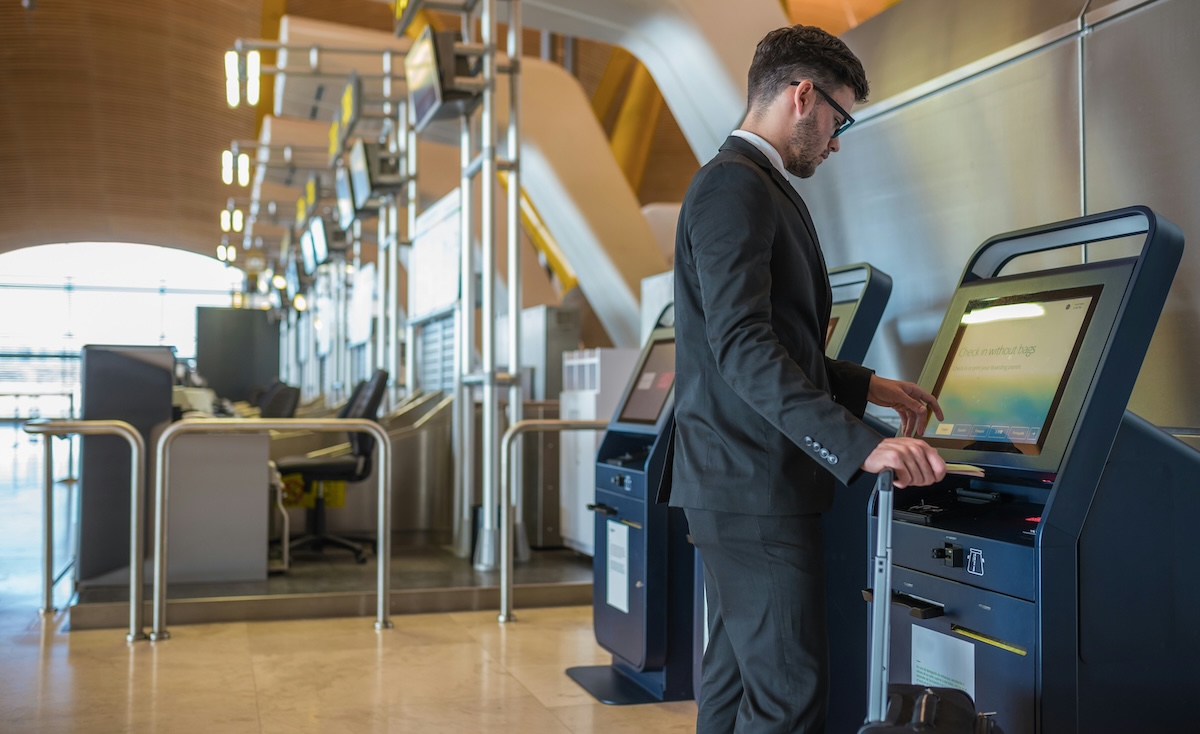
Kiosks are used for a variety of functions from ATMs to quick ordering at restaurants. You probably use a computerized kiosk on a regular basis and don’t give much thought to the systems underlying the technology. While touch and keyboard entry are not covered in this guide, the point is to readily display a dynamic graphic web page in full screen without providing ready access to the desktop environment. You can still fully manage the system through a remote terminal or with a keyboard and mouse connected yet locked away.
It is important to note that you must install the desktop image of 25.10 or later for this to function properly. If you do a distribution upgrade from an earlier version, X-Windows is still the default window manager. This required the Wayland desktop to be the default which it is with 25.10 or later.
To turn off the screen lock on Ubuntu 25.10, go to Settings > Privacy & Security > Screen Lock and disable the “Automatic Screen Lock” toggle.
- Create two profiles in Firefox. Names are not important, but let’s stick to “left” and “right” for this use case. The reason for using profiles is that only one browser window per profile can be opened in this manner.
- Create the path that will be required to store files.
mkdir -p ~/.config/autostart
- Requires the file ~/.config/autostart/kiosk.desktop with the following contents.
[Desktop Entry]
Type=Application
Exec=sh -c "firefox -p left --kiosk --private-window https://www.mewho.com/titan/ --kiosk-monitor 0"
Hidden=false
NoDisplay=false
X-GNOME-Autostart-enabled=true
Name=kiosk
comment=Autostart Firefox
Create a separate file for each monitor changing the –kiosk-monitor value and the -p value in the Exec entry. If there are two monitors, check the display settings to determine monitor number. They will most likely be numbered beginning with 0 with 0 being the primary monitor. Update the last value on the Exec line appropriately.
- Install openssh-server.
apt install openssh-server
- Configure crontab to auto-patch daily at midnight.
0 0 * * * apt update && apt upgrade -y && apt autoremove && apt clean && reboot
If you still need to manage this system locally, connect a keyboard and mouse to your USB ports. Use the Windows key on the keyboard to reveal all windows. From there, you can close the existing windows, access the applications menu as needed to get to a terminal, or editor of your choice. Rebooting the machine when finished will get you back to kiosk mode easily.



Leave a Reply